Source: clawd-on-desk developer / publisher · View original source ↗
Clawd on Desk
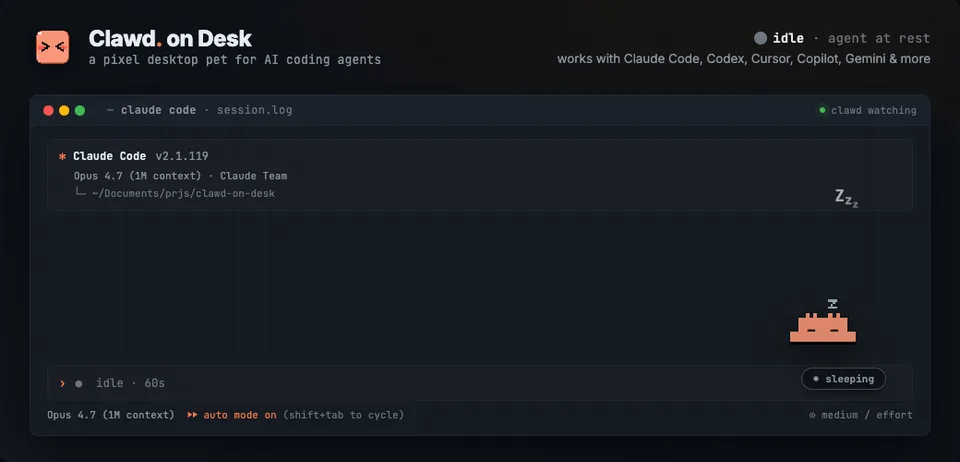
A pixel friend that follows your coding agents at work.
A desktop companion that reacts to coding-agent activity. Follow task progress, see notifications, and keep an eye on Claude Code, Codex, Cursor, and other supported integrations.
Visit official source ↗Source reviewed 2026-10-25. Check the developer’s current requirements.Meet Clawd on Desk
Clawd on Desk turns coding-agent activity into a small animated companion. When an agent is thinking, running tools, waiting for input, or finishing a task, the pet changes its behavior to reflect that work.
It also provides ways to follow sessions and respond to supported permission requests. The integrations connect to the coding tools you already use; the exact controls depend on the agent and its adapter.
What you can do
See work at a glance
Animations and a nearby session display help you notice activity without repeatedly returning to a terminal window.
Follow several sessions
A session dashboard brings multiple running agents together, with shortcuts back to their terminals.
Review supported requests
Compatible integrations can surface permission prompts in floating cards. Other agents keep their own permission interface.
Make the pet your own
Choose built-in characters, install themes, or import supported Codex Pet packages. A compact edge mode is available.
Keep up when away
Optional remote integrations provide notifications or supported approval controls. Slack notifications do not offer the same controls as interactive channels.
A good fit if you…
- You often wait for coding agents and want a visible signal when a task needs attention.
- You work across several agent sessions and like having a character accompany that activity.
Getting started
Choose the Windows, macOS, or Linux installer from the official release page.
Launch the app and review the agent integrations. Fresh installs connect Claude Code and Codex by default; other integrations are enabled in Settings → AI Coding Tools.
Start a coding session, check that its activity is detected, then adjust the theme, display, and notification options.
Things to know
- Permissions, remote controls, and notification behavior differ across integrations. Check the supported-agent documentation for the tools you use.
- Our listing has not measured memory usage or confirmed mouse click-through. Optional integrations need their own setup.
Will it fit your setup?
Agent Pets details
- Connects to
- Claude Code, Codex, Cursor, Gemini CLI
- Can help with
- Task progress, Notifications, Ambient company
Desktop Pets specifications are not yet confirmed
The available source does not confirm these specifications. Missing values remain explicitly unknown.
Before you bring them home
The official README documents agent hooks, status tracking, and integration-specific controls. Supported operations vary by integration; review setup instructions before connecting an agent. RAM and mouse click-through have not been independently measured.
Unknown specifications are marked as not confirmed. Review the developer’s requirements, privacy terms, and current pricing before choosing your companion.
Suggest a correction →